Overview
From one view, a user can update agenda details, add / remove topics, re-order the entire agenda, and take quick actions on everything.
Re-ordering your agenda
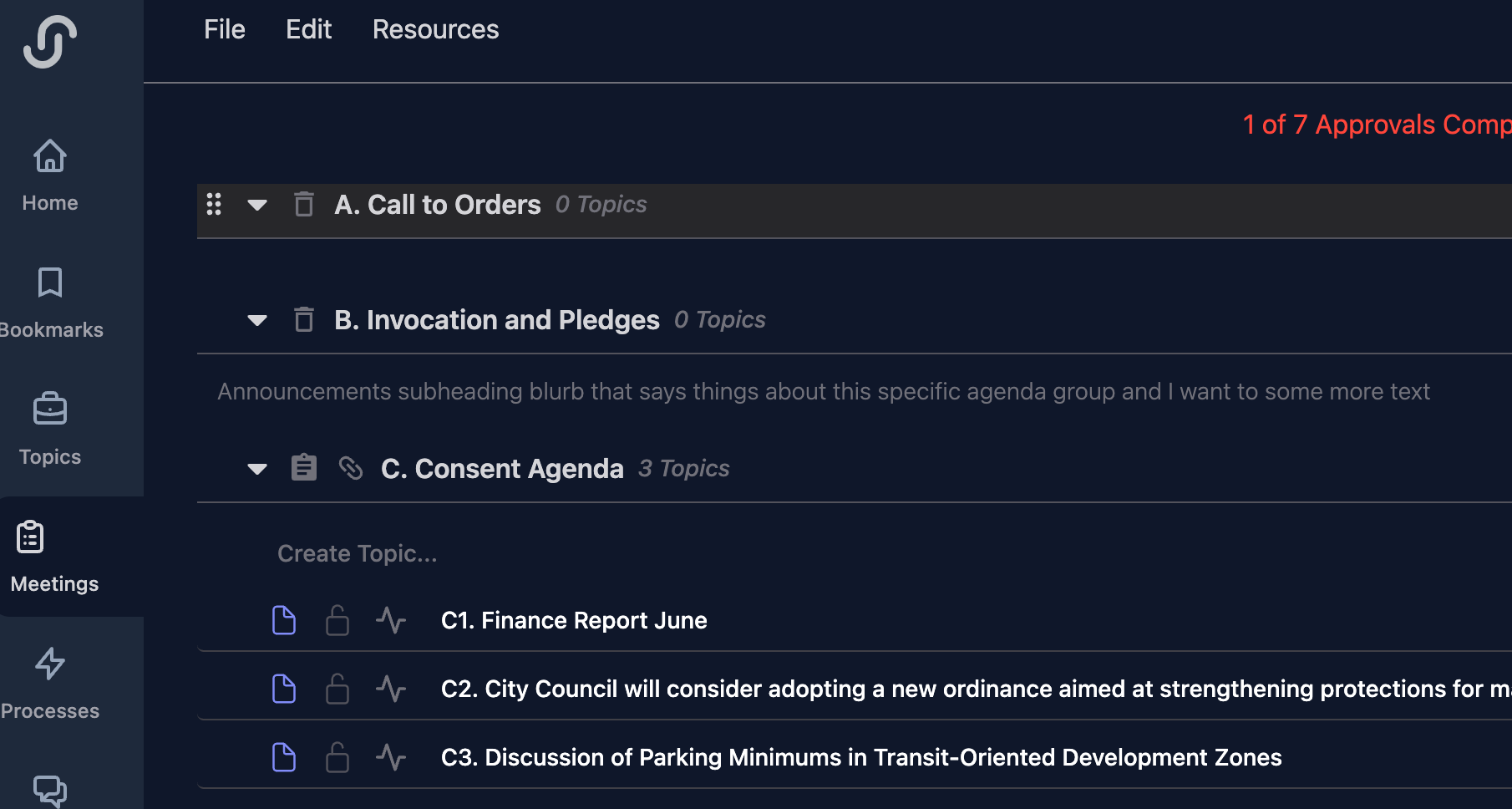
You can re-order groups and topics with ease by holding onto the drag icon and moving either the group or topic where you desire. Please note that if you try and move something where it's not allowed it will notify you. (Say for example you try and move a topic to a group that isn't allowed to have topics assigned to it.)
Removing Groups
You can remove a group by clicking the trash can icon to the right when the group is expanded. If you need to ever put the group back after removing it simply use the "Add Group" button at the top which will appear automatically if you've removed any group.
Adding a New Topic
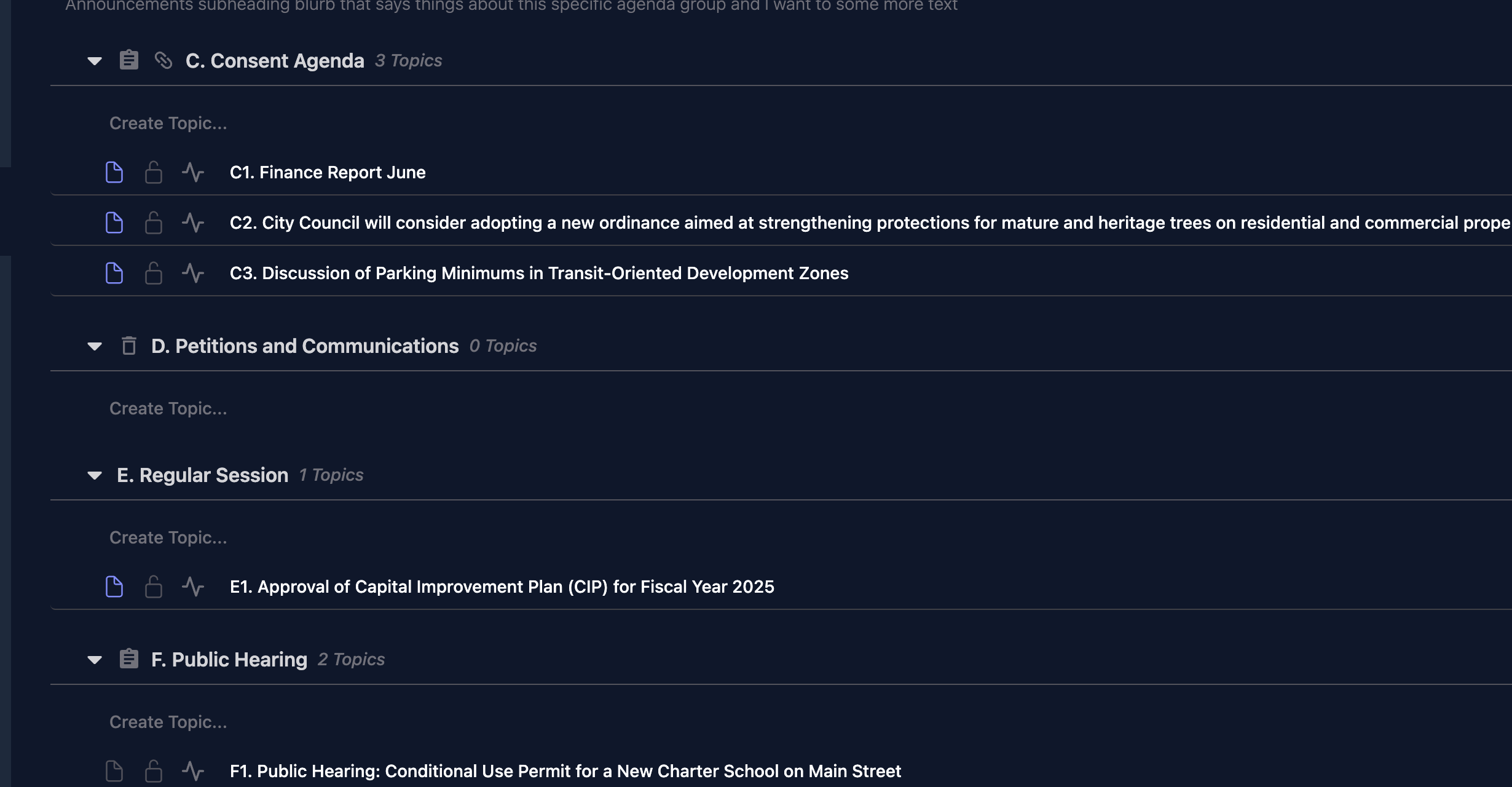
To create a new topic and place it directly onto the agenda you will see "Create Topic..." where that is allowed. Simply click the button to enter the information and add a topic to that agenda group.
Assigning Topics or Linking Minutes
If you have agenda topics that are in the queue and available to be assigned to this meeting you will see a clipboard icon to the left of the groups name. Pressing this button will show you all topics available that can be assigned. Choose as many you wish and they will be added to the meeting's agenda.
If you see a link icon it means that this group can have any minutes drafts from prior meetings automatically linked to this meeting. Press the icon to see if there are any available. Choose which ones you want to link and the software will create the report for you based on which template in the settings it's told to use and attach a pdf version of the minute's draft to the topic.
Working on Individual Topics
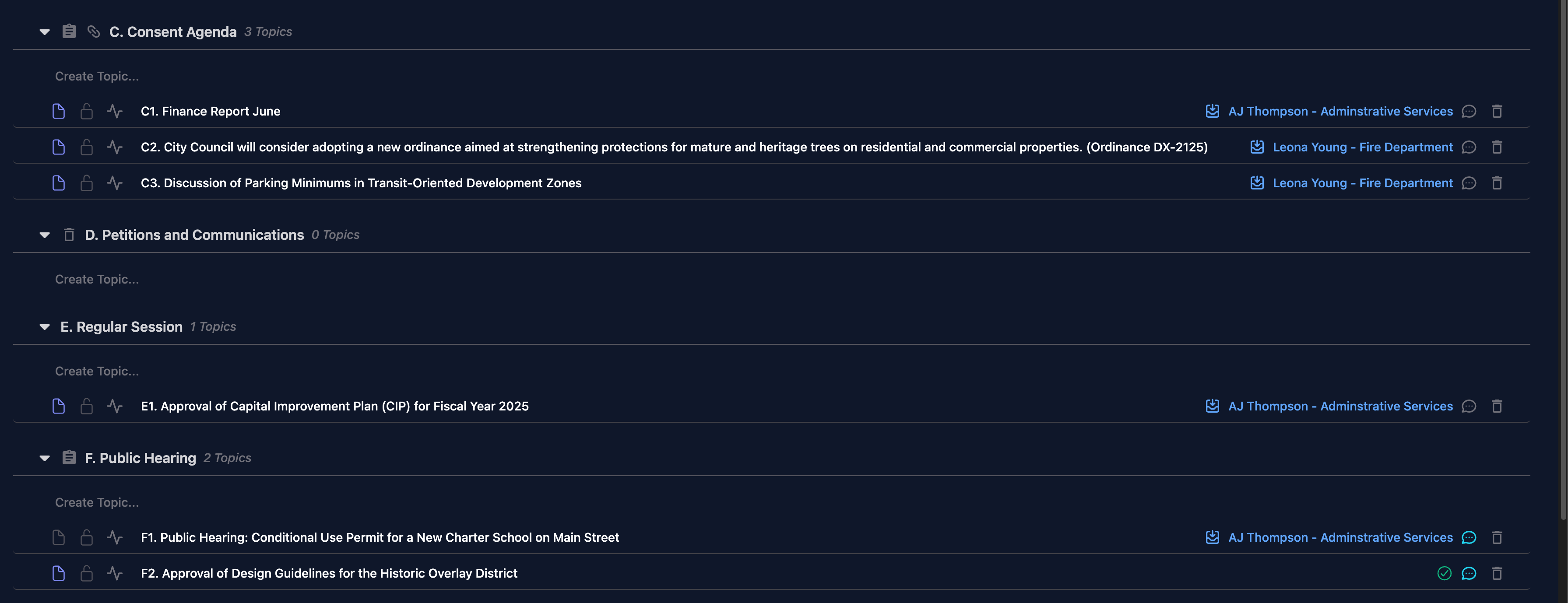
From this view you will see three icons to the left of the topic's title.
- Document Icon: This icon first tells you if the topic is set to produce a report for the agenda. If you are an approver role or higher you can also just click it to turn that option on/off.
- Lock Icon: If red, it signifies that this topic is locked. Approver role and higher can also click this to lock / unlock the item.
- Activity Icon: Any user can press this icon to quickly view the activity feed of all actions performed on this item.
On the right side of the title you will see 3 addtional things.
- Approval Process: If the item is going through an approval process you will see either who it's currently assigned to or a green check signifying the process is complete.
- Chat Bubble: If this icon is blue it signfies there are currently registered speakers on this item. Either way, you can press the icon to view registered speakers and make any changes needed to them.
- Trash Icon: Approver role and higher will see this icon and pressing will allow you to move this item to a different agenda or place it back the queue.
There are also tooltips for all the icons and the title itself. Simply hover your move to view what the icon is for and if hovered over the title it will show you the full title so in instances where you have a long title and it's truncated this will show you the title in its entirety.