Overview
The editor within JustMeetings supports one-click requesting and inserting of signatures.
Request a Signature
Click in the editor where you want to put the signature and then click the "Signatures" menu and select "Request Signature".

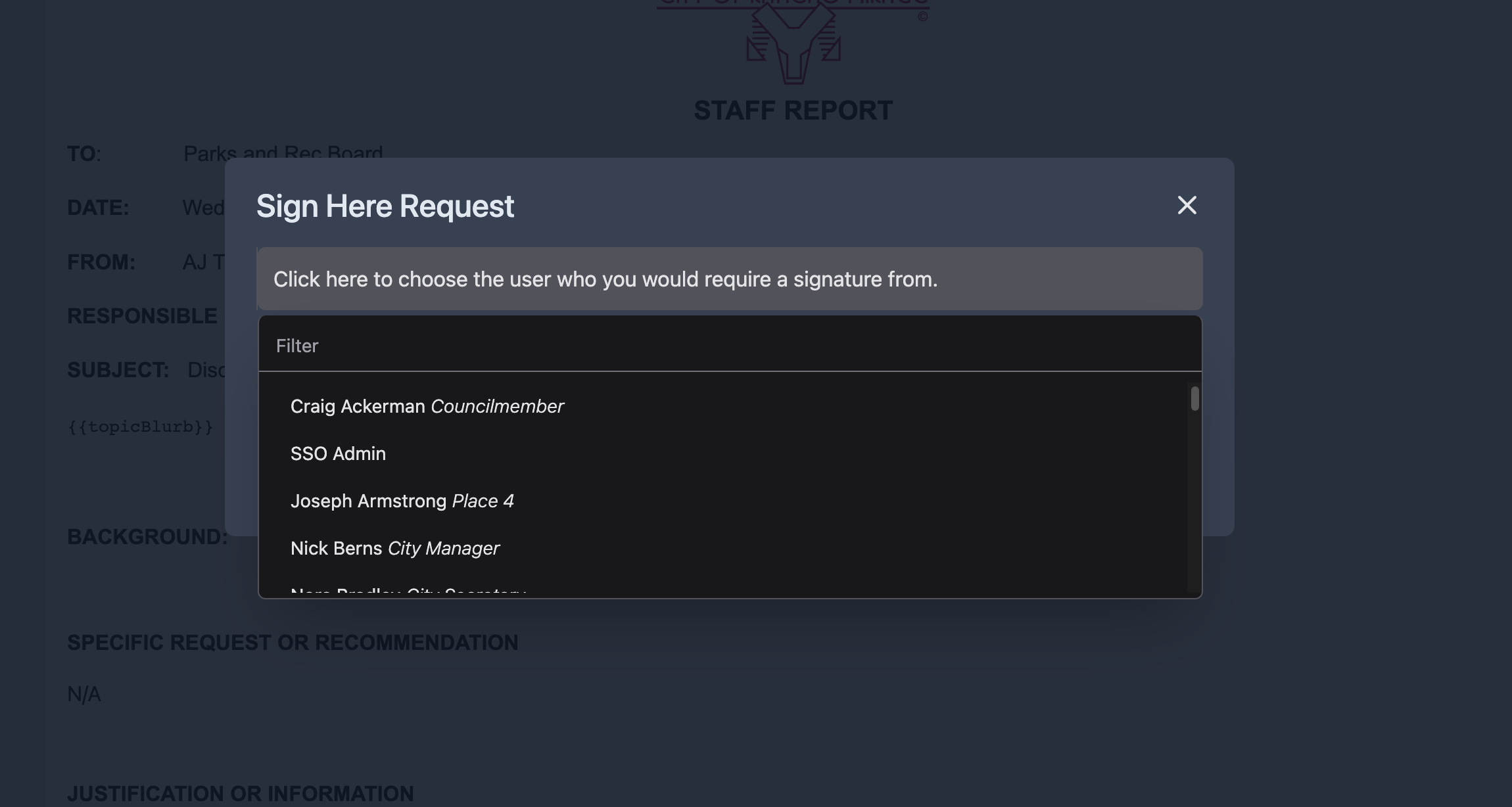
This will open the "Sign Here Request" modal where you can choose which user you want to request a signature from.
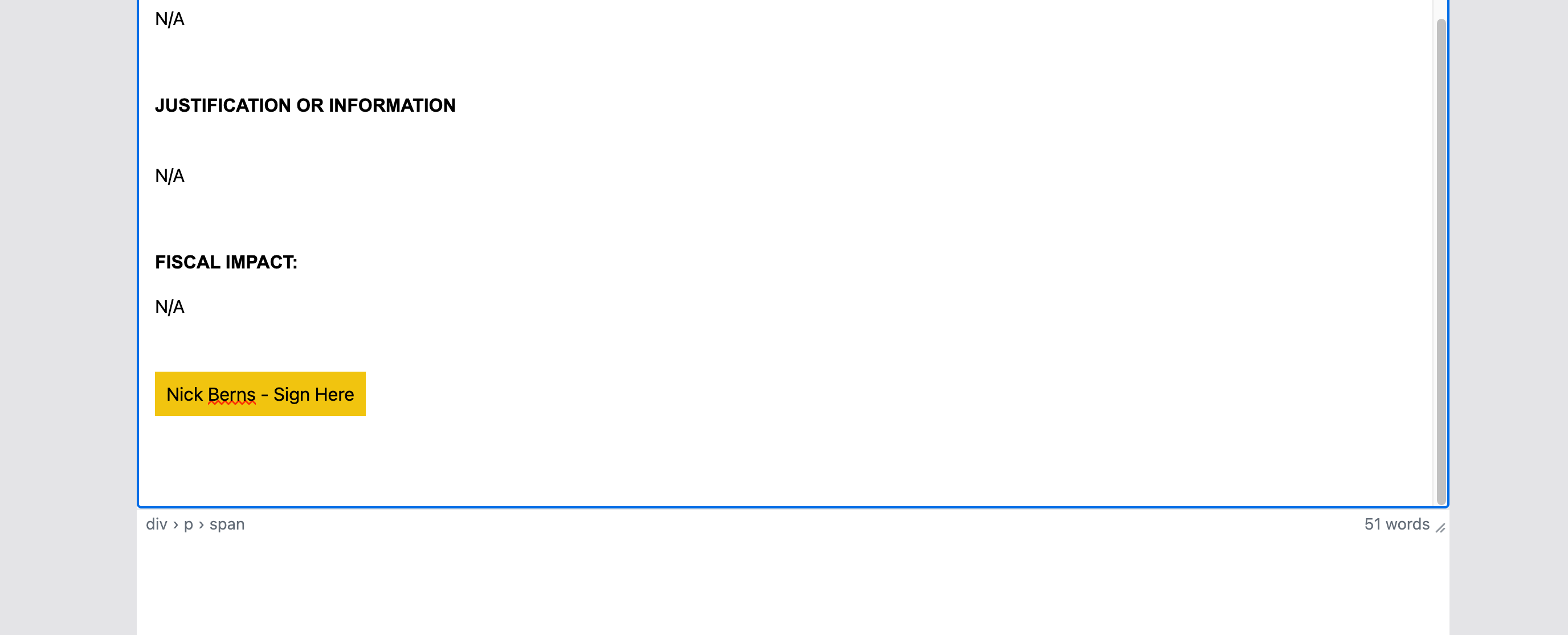
Once you press the user you desire it will put a signature request into the editor. (Please note this signature request is not visible to the public)
If you assigned it to an app user it will put the signature request into their "My Tasks" on their home page. If you assigned it to a board member it will appear in their "To Sign" section within the Board Portal.
Inserting a Signature
Only the user who is assigned the signature request can click it to add their signature.
When they click it, if they don't have a signature captured it will first ask them to capture their signature.
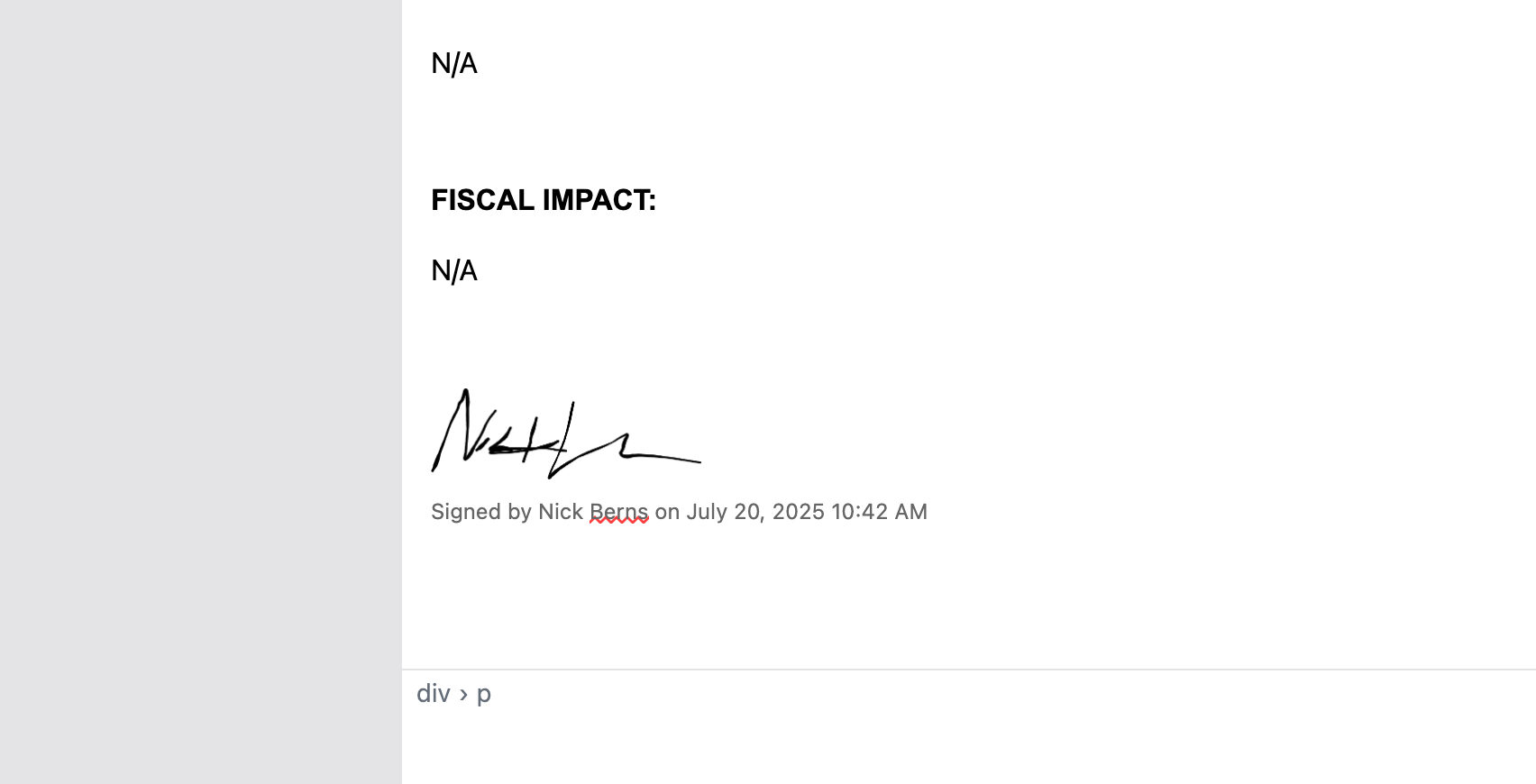
It will then insert the signature along with their name and date/time they entered the signature and remove the signature request.
Manually adding a signature
You can also manually insert a signature anywhere you wish whenever needed for any user that has captured their signature. You will see the list of users who have captured their signature in the Signatures drop down menu. Simply click a user and it will drop the signature into the report wherever your cursor has selected.
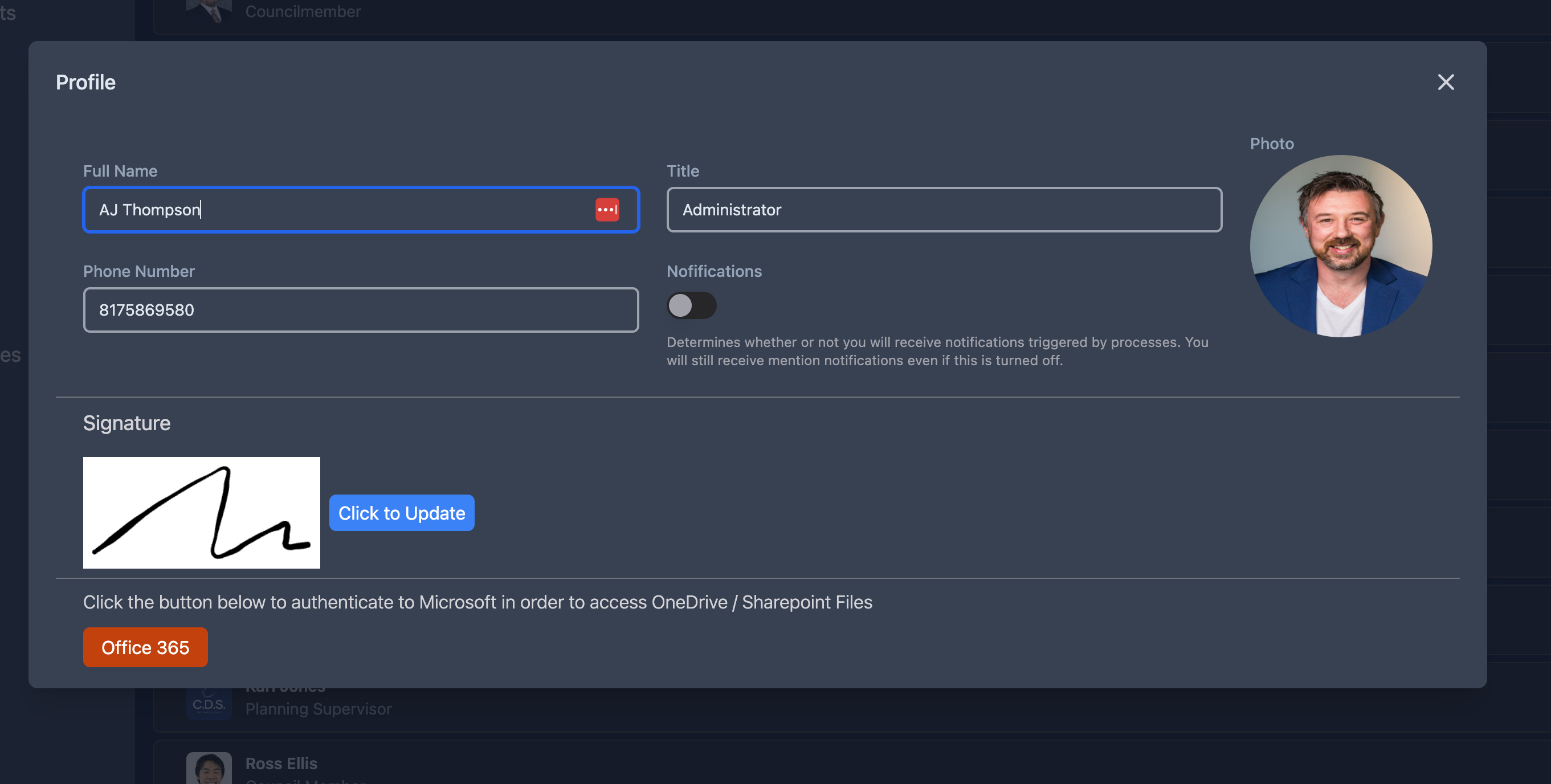
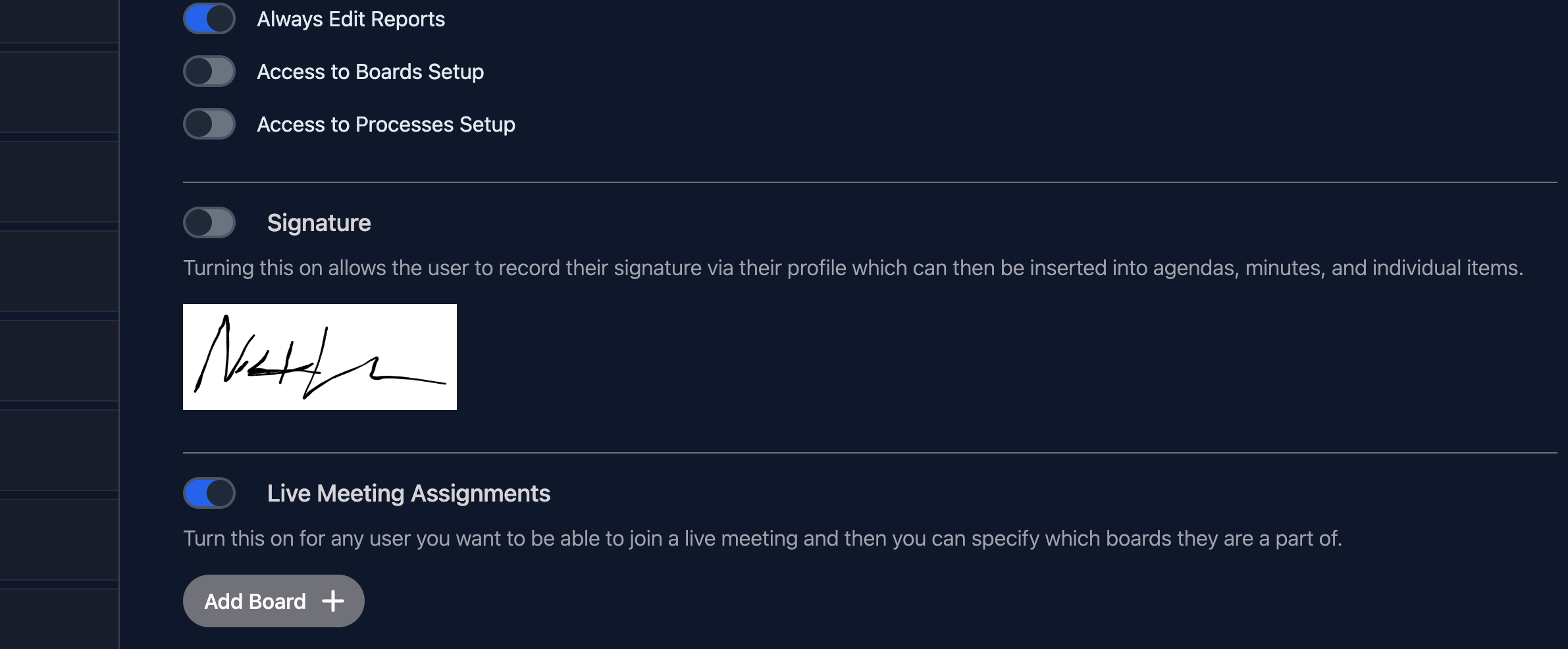
If you want a user to be able to capture their signature at any time. Go to their user settings and turn on the "Signature" option. This will also show you an image of their signature if they have captured it.
A user can add or update their signature at any time by going to their profile from the top right of the application.