Meetings
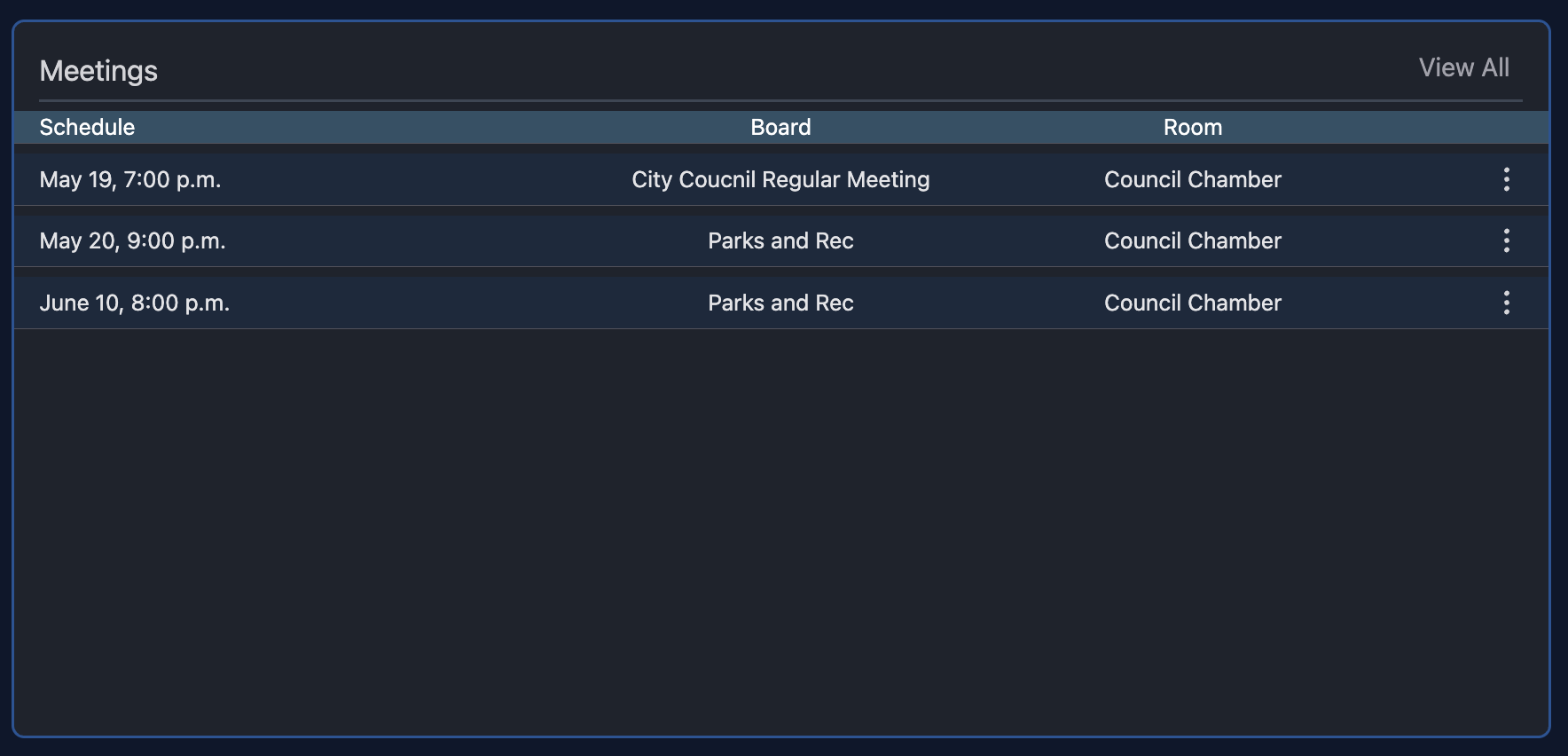
The meetings list consists of any meetings you have access to run or join. (Please note, admin users have access to all meetings no matter what).
The list will show only meetings that haven't already been run. So you won't see any meeting with the status of "Minutes Pending", "Minutes Approved", or "Complete".
Options
To take action on a meeting click the 3 dot icon which will provide you with the potential options below. If you notice a meeting that's text isn't white it signifies that the meeting is currently in progress.
- Run Test Meeting: You can run any meeting in test mode whenever you wish. Test meeting is great for running through things, training, testing the room, etc. It works exaclty the same as running a live meeting with the exception of it doesn't record any data of what you do.
- Join Test Meeting: Allows you to join the meeting in progress
- Resume Test Meeting: This option shows up if you have recessed the test meeting. Pressing it resumes the meeting right where you left off.
- Begin Live Meeting: You will only see this option on meetings where it's schedule date is today's date. When you are ready to officially run your meeting this is what you will press. It will first prompt you to verify you are ready just in case you click it by accident. The meeting doesn't have to be published to run a live meeting. This is great for those who may use the software just for running a live meeting and voting purposes.
- Join Live Meeting: Allows you to join the meeting in progress
- Resume Live Meeting: This option shows up if you have recessed the meeting. Pressing it resumes the meeting right where you left off.
- Manual Record Minutes: You will see this option for any meeting that is published. You can use this option to quickly set a meeting's status to "Minutes Pending" for situations where maybe it's a board or meeting type where you don't run it live.
- Details: This option will take you the agenda building view of the meeting.
- Force Meeting Adjournment: Administrators are the only users who will see this option if the meeting is active. This option is there for situations where maybe a user forgot to end a meeting. Clicking will instantly end the live meeting.
View All
If you would like to get a calendar view of all the meetings clicking this will open up that view for you.
Troubleshooting
If you feel you should be seeing meetings but they aren't showing up in the list.
-
Have your administrator check to make sure they have the "Join Meeting" option checked and have added you to the board you aren't seeing.
-
If it's a meeting that you strictly use for testing purposes there's a good chance it's date is too old to where it doesn't show. The list will show 15 days into the past and 30 days into the future. To resolve, go to that meeting and update it's schedule date.
-
Check to make sure the meeting's status hasn't accidentally been set to anything related to minutes or completed.