Overview
Let's review how you can easily type up minutes information on individual groups and topics which then will create a full minutes document for you.
Choosing what to type information on.
Using the document icon to the left of an agenda group's name or the minutes document icon to the right of a topic will open up the minutes editor for that specific item.
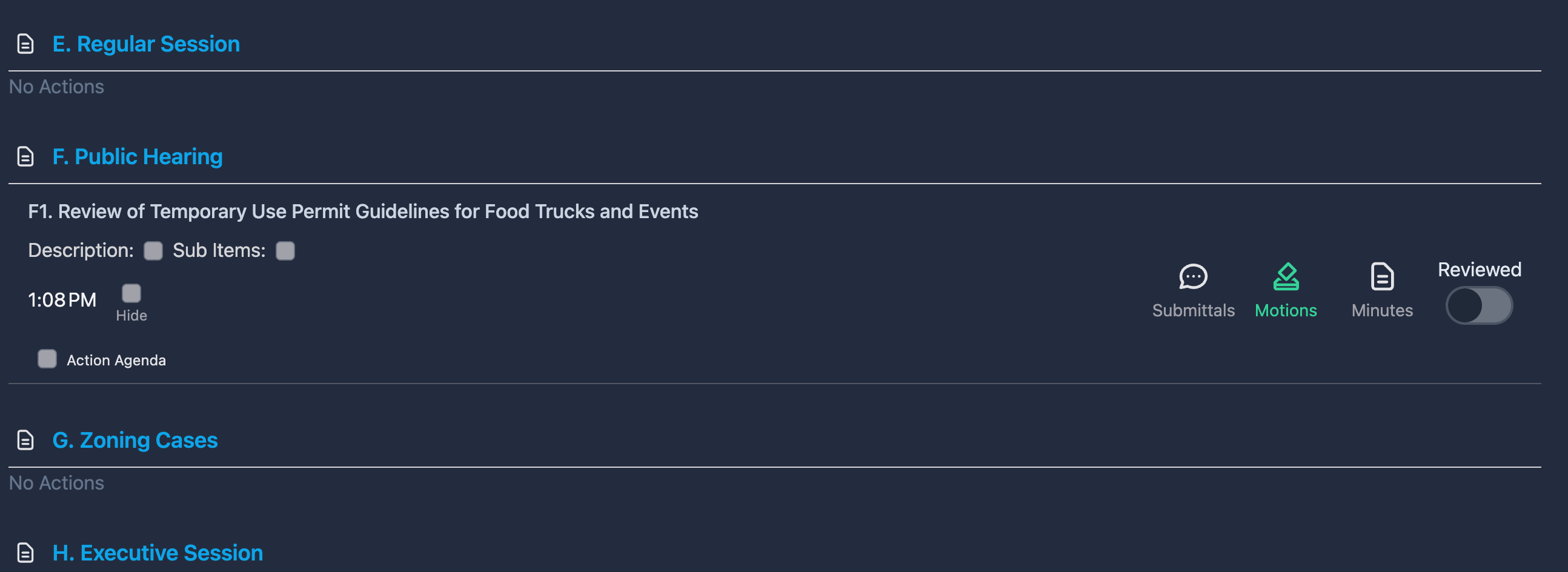
Typing Up Minutes
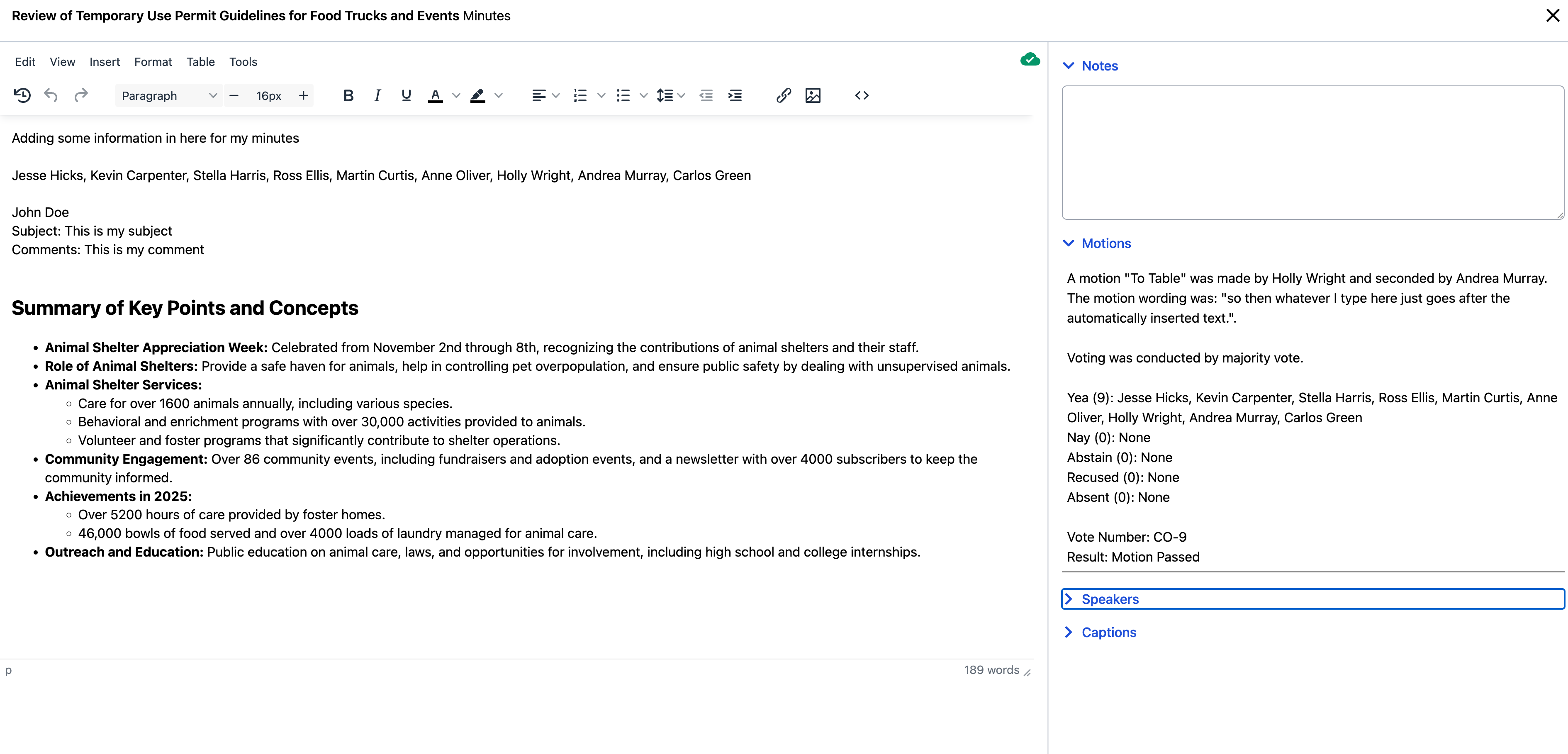
Once the minutes editor opens you will have the ability to type up minutes information on the left while having access to information pertaining to the topic on the right hand side.
- Notes: This will show you any notes that you may have taken while running the meeting with our live meeting capabilities.
- Motions: Here you will get a synopsis of every motion/vote from this topic. To put the information into your minutes simply highlight what you want and copy it right in.
- Speakers: If using our Citizen Registration capabilities, the information of all registered speakers or comments will be here and again you can highlight to copy and paste that information in.

- Captions: In order to have access to this capability you must either be a subscriber to our OnAir TV service or utilize Closed Caption via Cablecast. In this section you will see the full transcript of the meeting and you can type to find specific information you are looking for. Once you've found what you are looking for simply highlight all the text you want and paste it into your minutes.

Once in the editor you can highlight all the text and choose the AI Shortcuts wand. Now you can ask AI to summarize all the information from your captions.
