Linking and Chapter Updating
Last Updated: 3-23-26
When you have a video linked to a meeting, you will be able to watch the video while working on your minutes as well update chapter markers. In order to do this the meeting status must be at least Minutes Pending.
Linking a Video
-
For those using our streaming service OnAir TV, the video will automatically link itself to the meeting around 30 seconds after the live stream has ended.
-
If you are using our software along with Cablecast, first you will need the meeting linked to the show in the Cablecast system. Then once the VOD asset is ready it will let our software know and link itself. How long this takes depends on how long your meeting lasted. Typically conversion time is around half to 3/4 of the amount time your meeting lasted.
-
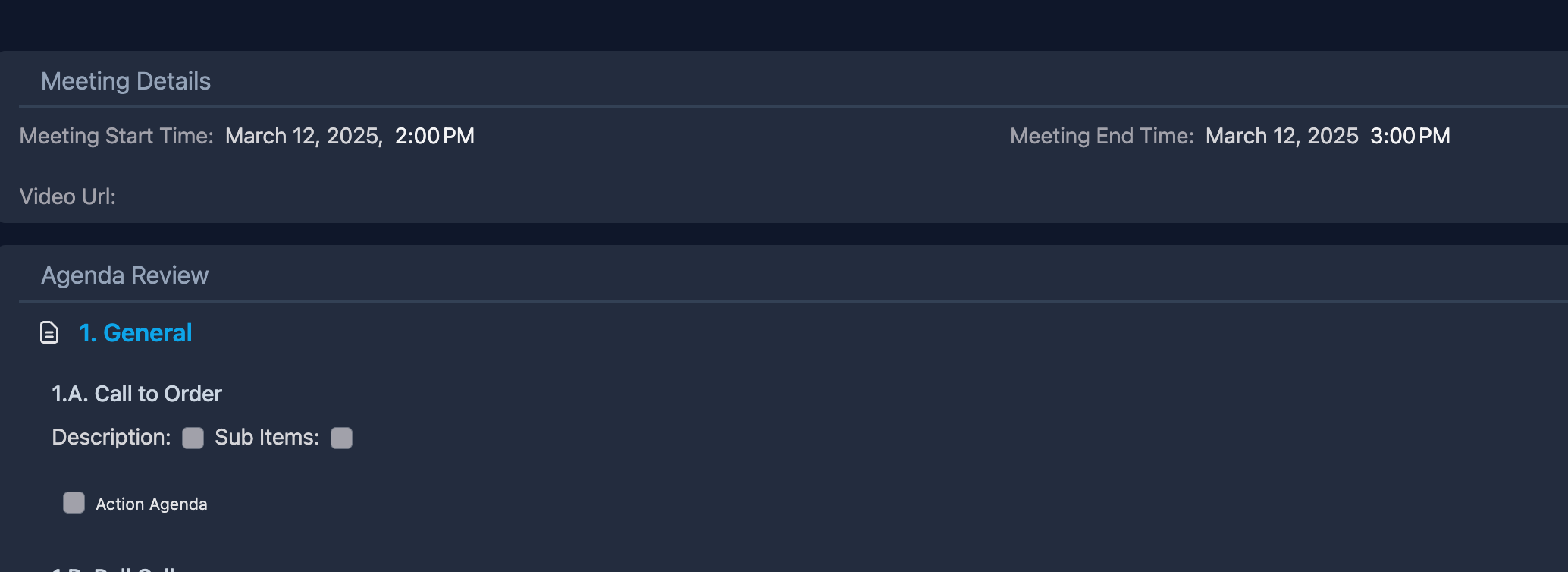
If using YouTube or Vimeo for your meeting videos, when you open a meeting with the status of "Minutes Pending" you will see a "Video URL" field at the top. Simply copy and paste the share link from YouTube here.
View the Video
When there is a video linked to a meeting you will see a blue circle button with a camera icon at the bottom right of your screen.
Click this button to show the video, which will also then show you chapter jump and update buttons next to every agenda group and topic. The video will automatically start playing (muted).
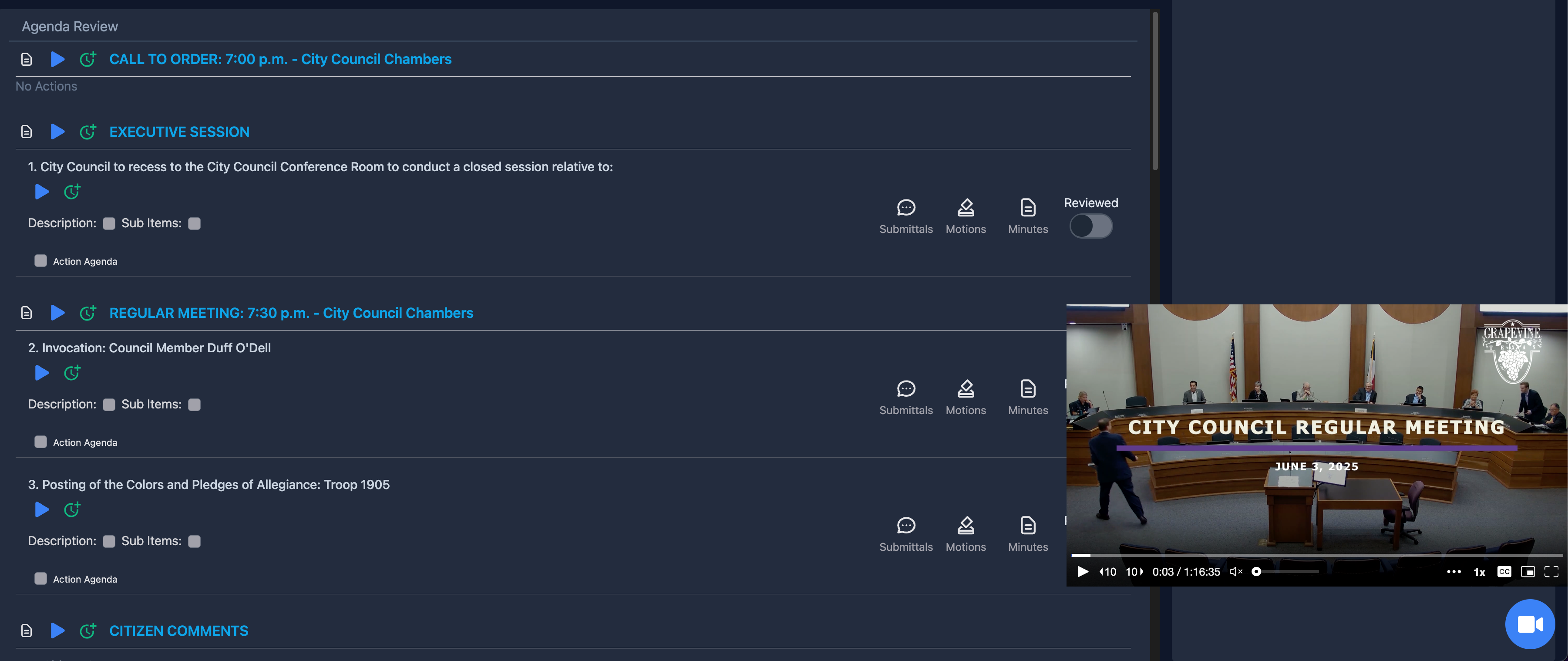
- To jump to a specific topic or agenda group in the video click the blue "Play" icon and it will jump to where that chapter marker currently exists in the video.
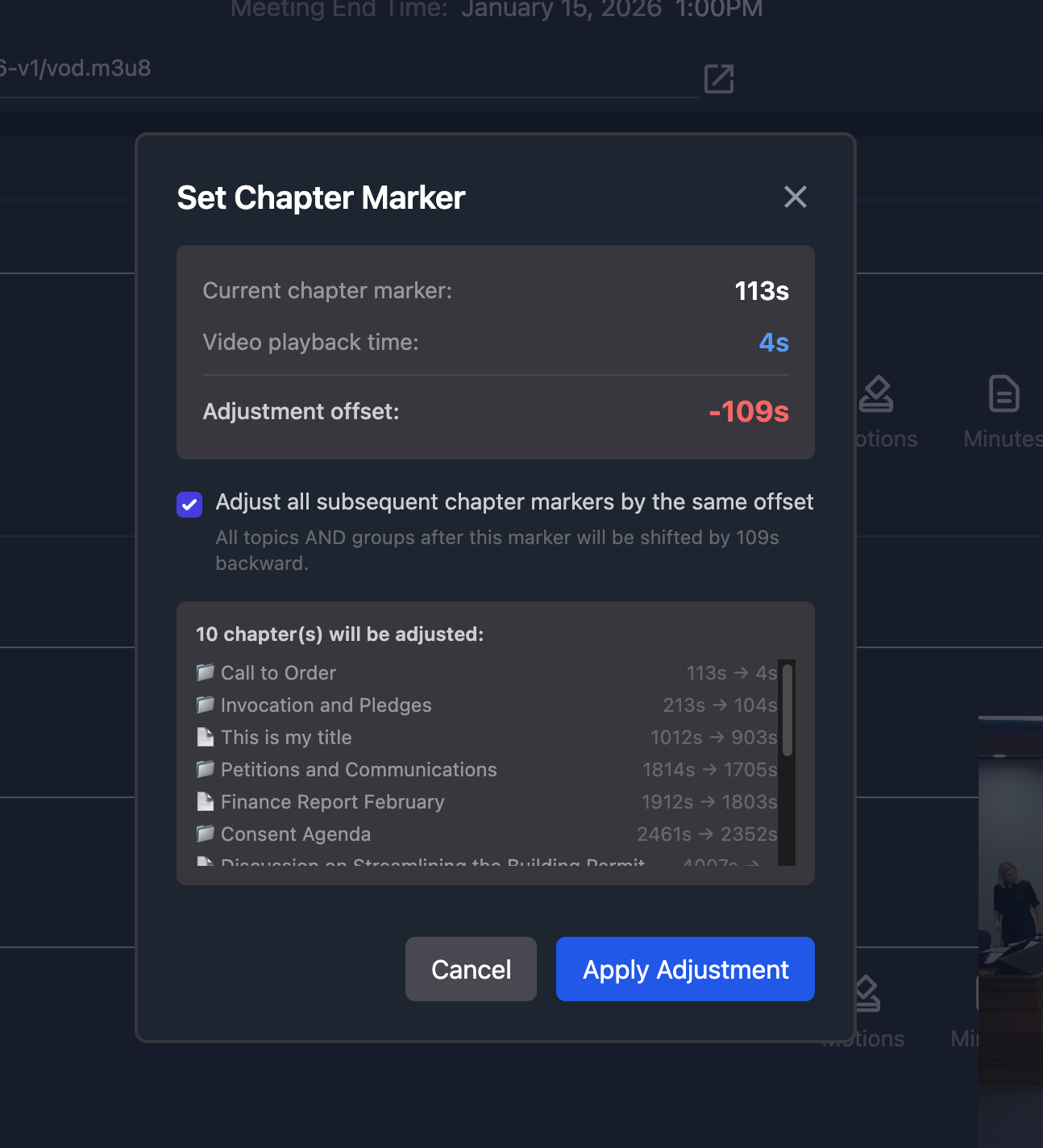
- If you feel the chapter marker is a little off you can use the 10 second skip buttons in the player or drag the timeline. Once you have it exactly where you want it click the green "Clock+" icon and it will instantly adjust the chapter marker.
When you click the update chapter button you are also presented with an additional option to update all chapter markers after this one with the same offset. By checking the box it allows to adjust all following chapters markers.
This is especially useful to align your call to order with where call to order is at in the actual video and then adjust everything afterwards. This should then align all chapter markers accordingly.
If you want to listen to the video while working on your minutes, you can click the blue camera button again to hide the video and it will continue playing in the background.