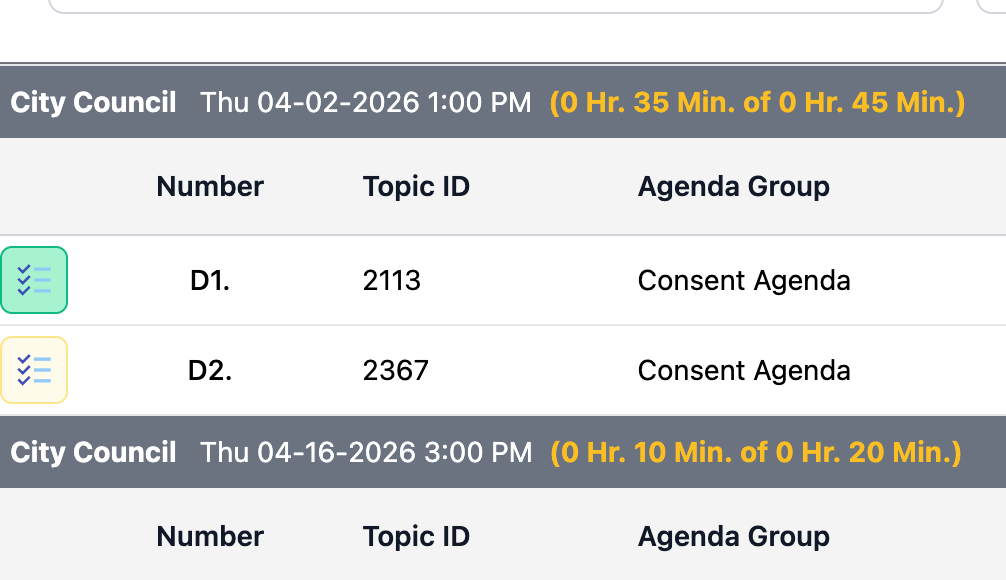
Overview
Reports allow you to build out a custom agenda forecasting report with filtering, search, and follow up actions. The form is digitally available via a URL and the data is always up to date whenever you open it.
Creating a new report
You can have as many reports as you wish and they can be fine tuned to provide the specific information you would like.
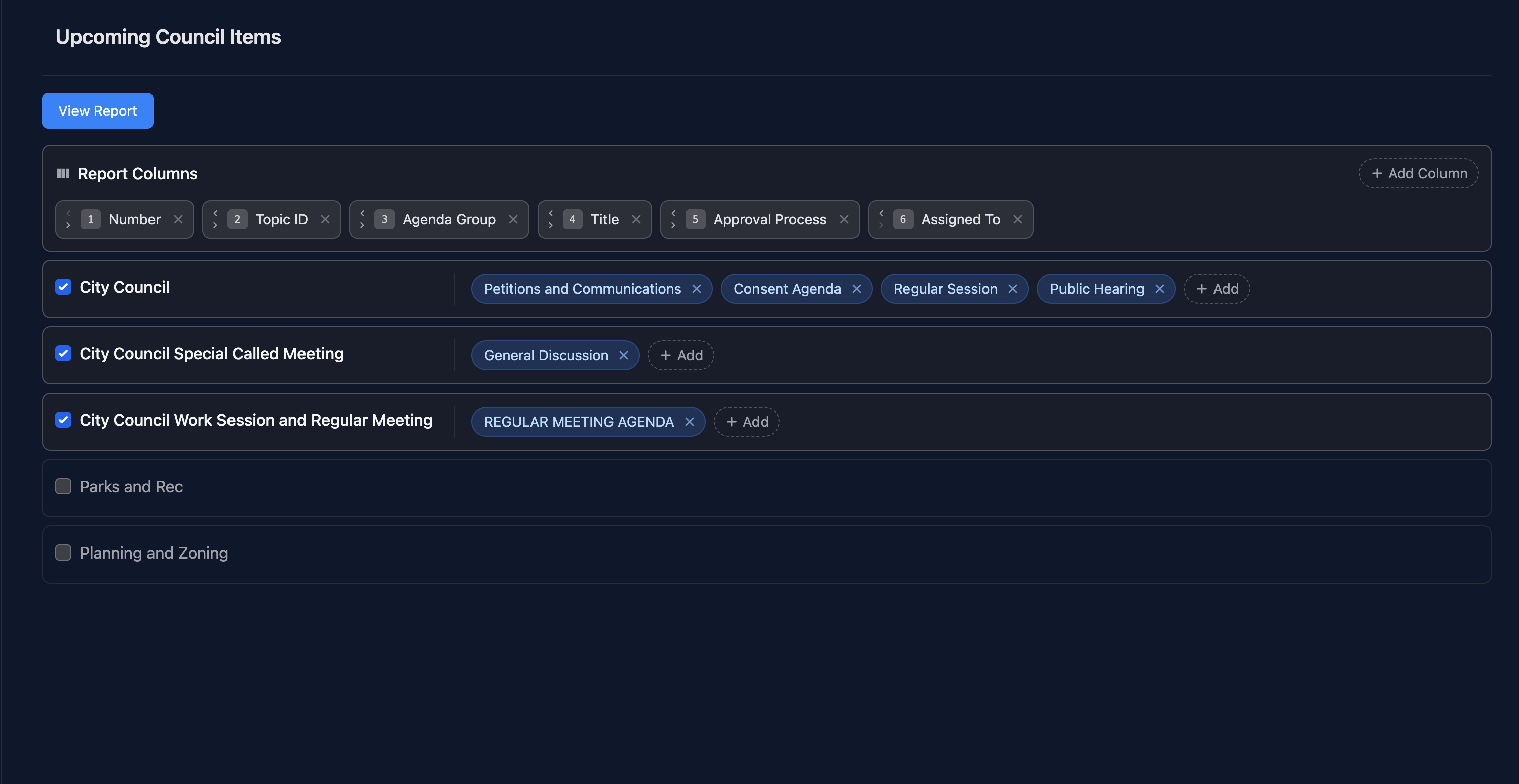
- Report Columns
Here you can specify what data you would like in which columns of the report. You can also move column lefts and right using the arrows next to the number.
- Boards and groups
Next you will put a checkbox next to which boards the report should include and then use the +Add button to add which agenda groups the report should use.
Doing these 2 steps tells the report which topics you would like in the report based on board and agenda groups they belong to and the data is presented in columns based on your settings of the report columns.
Viewing the Report
To view the report click on the "View Report" button. You can save the url it takes you to and use it to go directly back to the report whenever you wish. The report will always contain the latest information.
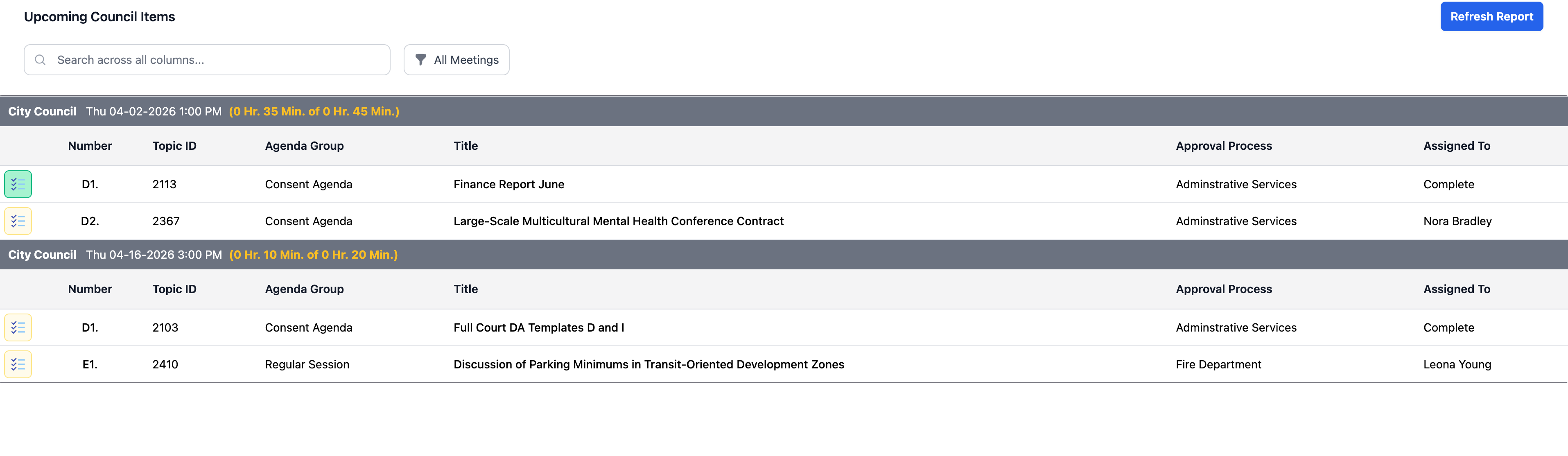
The report will breakdown the information you requested by meeting date.
- Filtering: You can choose to show only specific meetings using the Meeting filter.
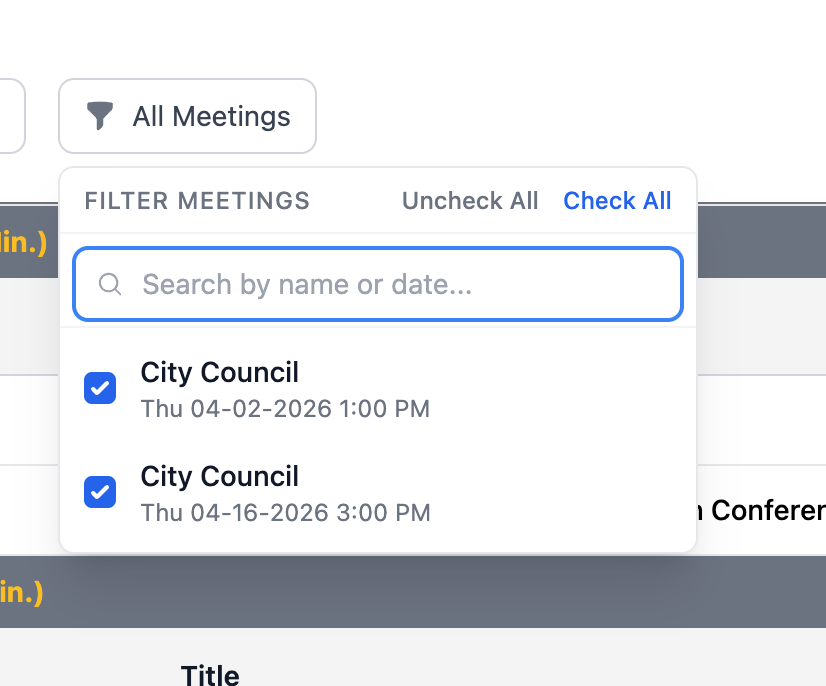
- Search: You can use the search box to search through data from all the columns you have specific in the report and it will instantly filter the information.
- Topic Details: Click on any topic to view the topics details and attachments
- Follow Up Actions: The left of the first column you will see a "To Do" icon. It will be a green tint if there are any follow up details typed up for that topic. You add or view information simply click the icon.